
In the competitive job market of today, continuous learning has become important to stay relevant in the industry. Yet, you may find that many professionals are failing to showcase their completed courses, thus missing out on recruiter searches.
By adding certifications to the “Licenses & Certifications” section of your LinkedIn profile, you will be able to boost your visibility in recruiter search results. It will provide you with immediate credibility as a candidate and prove your skills to employers. If you want to learn more about adding LinkedIn certifications, along with the steps for doing so, then keep reading.
Before you start adding your certifications on LinkedIn, understand why doing so is vital today. According to Daniel Shapero, the former Chief Operating Officer (COO) of LinkedIn, members with certifications receive 6 times more profile views than those without them.
You will also find numerous certificate providers on LinkedIn, including top choices like Microsoft, Coursera, Global Institute of Professional Management Certification (GIPMC), Google, and Aspiring Minds. Here are the key benefits of adding a certification to your LinkedIn profile.
Hiring managers actively use LinkedIn Recruiter to search for specific certifications. So, by including the recognised certification in your profile, you can ensure that your profile appears in the targeted, high-intent search results.
Start by securing LinkedIn certifications in high-demand fields, like project management, for example. You can enrol for the Project Management Certification (PMC) by GIPMC, and add the certification to your LinkedIn profile after course completion.
By adding certifications on LinkedIn, you will be able to validate your expertise through reputable institutions like Microsoft, Coursera, GIPMC, and Google. So, it will serve as a third-party endorsement, helping you build trust and credibility. Your LinkedIn certifications will indicate that your skills are current and meet industry standards.
Your LinkedIn profile will look more complete and competitive with detailed certifications. With an updated profile, you can get high visibility in recruiter and candidate searches. It will also demonstrate that you are committed to lifelong learning, continuing to learn even after getting your degree.
For example, if you have a degree in engineering, you can make yourself more competitive by securing a certification in the lucrative field of enterprise change management. Try becoming a Certified Change Management Professional (CCMP) with the course offered by GIPMC.
Let’s dive into the steps on how to add certification in LinkedIn profile from your desktop.
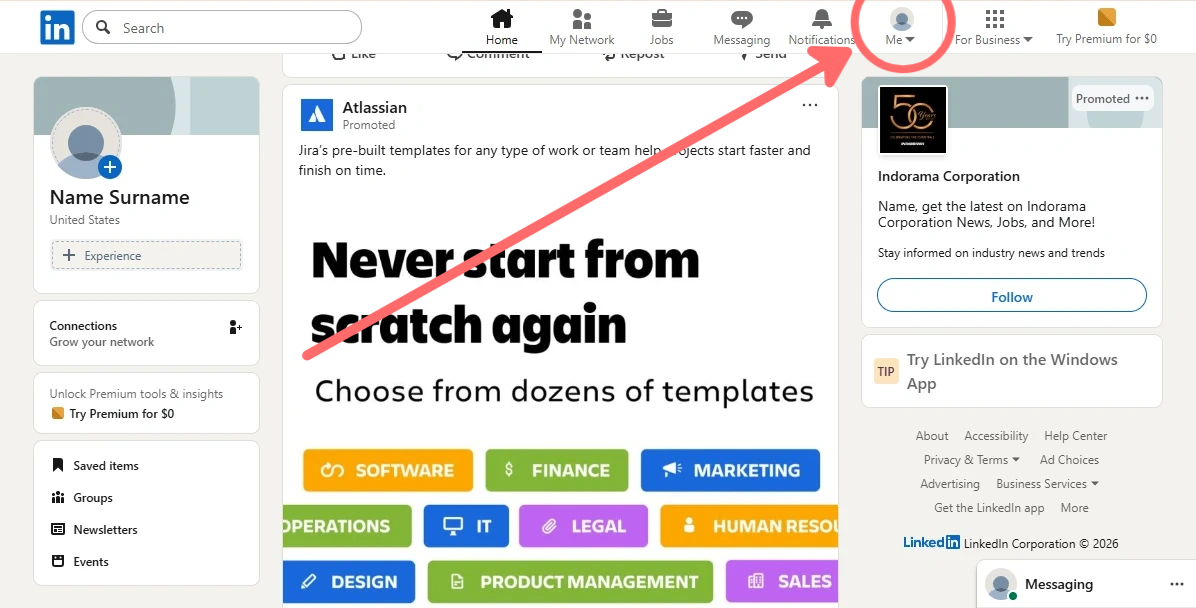
First, log in to your LinkedIn profile. Next, click on the “Me” icon at the top of your homepage.
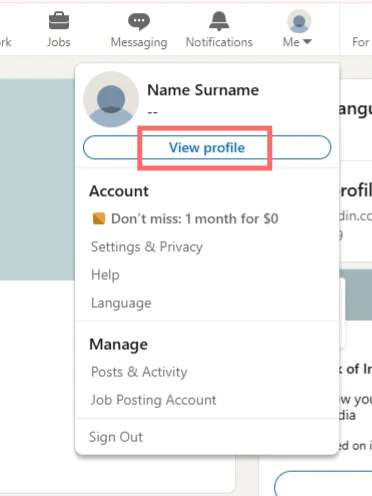
Once you click on “Me”, a drop-down menu will appear. Find the “View profile” option and click on it.
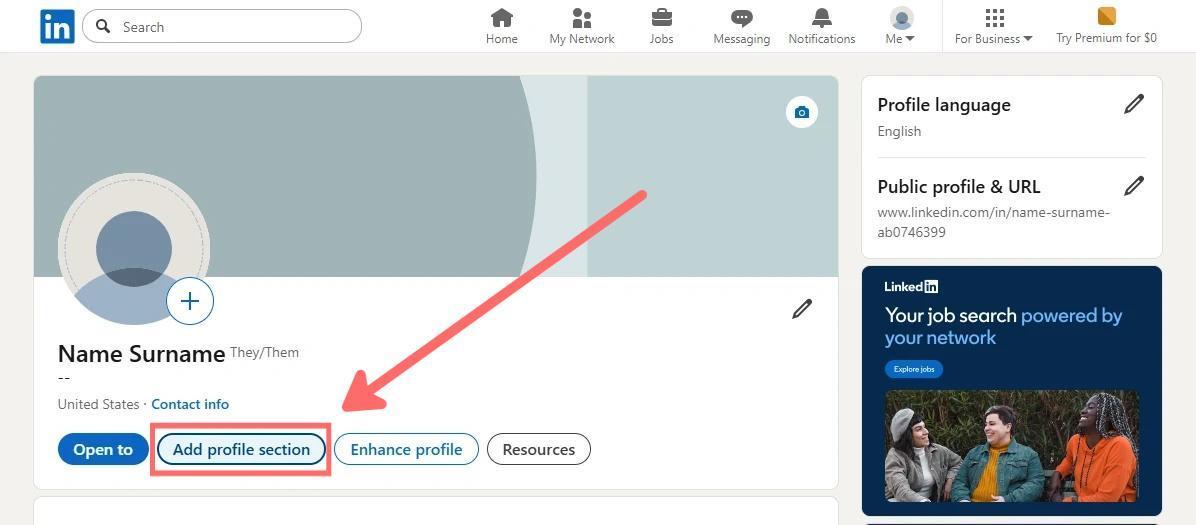
Once you are taken to your profile view, find the “Add profile section” option under your name and location. A pop-up menu of what you can add to your profile will appear, which is labelled as “Add to profile”.
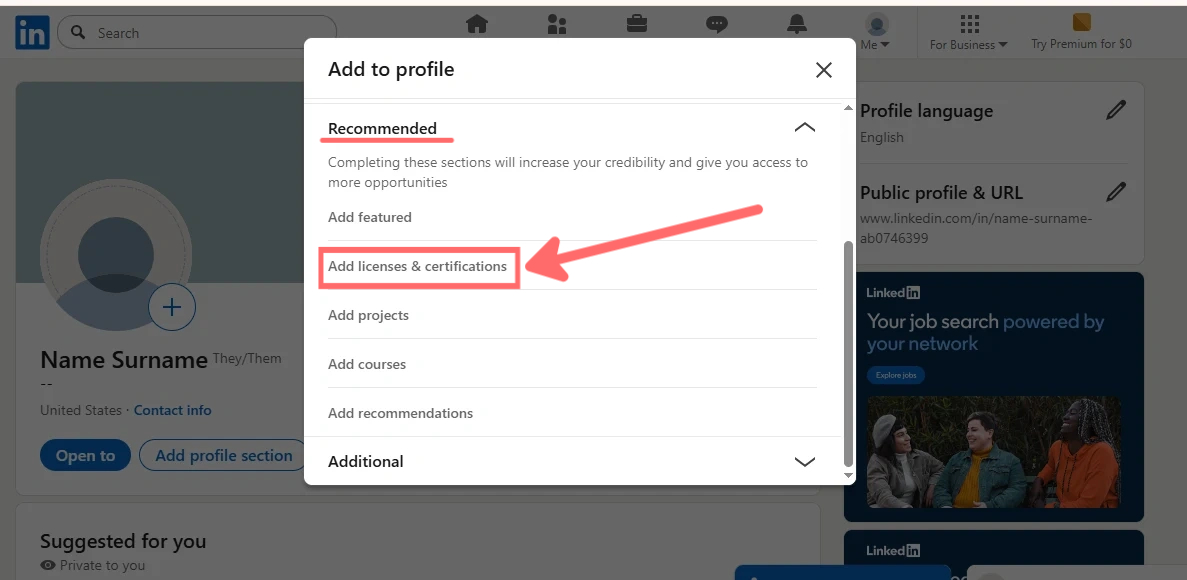
In the “Add to profile” pop-up, you will find three options, which are “Core”, “Recommended”, and "Additional". Click on the "Recommended” option, and a drop-down menu will appear. In the menu, find “Add licenses & certifications”, and click on it.
When you click on “Add licenses & certifications”, a pop-up window will appear. It will resemble a digital form, and you must fill in the details of your certifications. Once you are done filling out the form, click on “Save”.
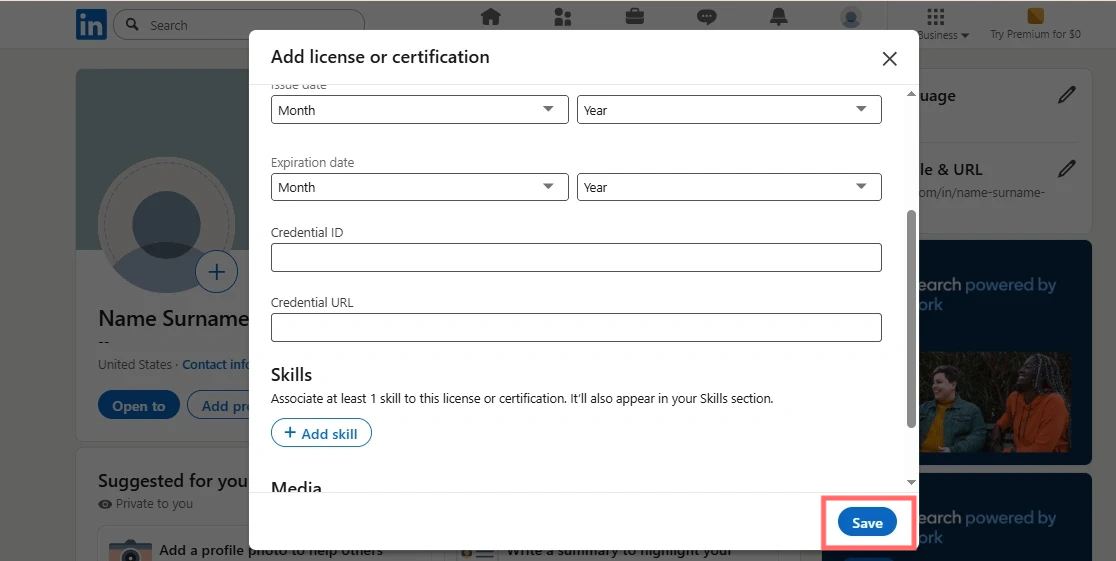
The following are the details you must fill in.
You can also boost your professional credibility by adding certifications to your LinkedIn profile through a smartphone. Here are the steps on how to add certifications to LinkedIn from your mobile device.
Test your understanding of how to add certifications on LinkedIn now by completing a course on contemporary industry skills, such as the Cyber Security Professional (CSP) by GIMPC, followed by updating the certification on your LinkedIn profile.
Here are some tips to maximise impact after adding certifications to your LinkedIn profile.
Keeping your LinkedIn profile updated is essential for boosting your professional visibility and maintaining a competitive edge. Adding new credentials regularly will ensure that your current expertise and career achievements are reflected on your profile.
Certifications serve as a powerful and verified proof of your commitment to professional development and continuous learning. Do not let your skills go unnoticed. Enroll for certification opportunities offered by recognised organisations like the GIPMC, and keep updating your latest certifications on LinkedIn as they are issued!
No, your certifications will be automatically ordered by LinkedIn based on date. Manual reordering is not supported. To change the order, you must edit the date on your certifications or remove and re-add them.
Certifications can still be added on LinkedIn without the URL. Although a certification URL increases credibility, it is not mandatory.
Yes, it is recommended to keep your expired certifications to show your learning and career history. They still represent earned knowledge. Just make sure that you keep the end dates updated accurately.
No, it is recommended to only add the most relevant, high-value, or latest certifications. Make sure that the added certifications align with your career goals. Avoid adding excessive irrelevant or outdated certifications, as they can clutter your profile and dilute your personal branding.
Yes, when a course is completed, you will be prompted to add it to your profile. You can also add them directly from your “Learning History” page.